
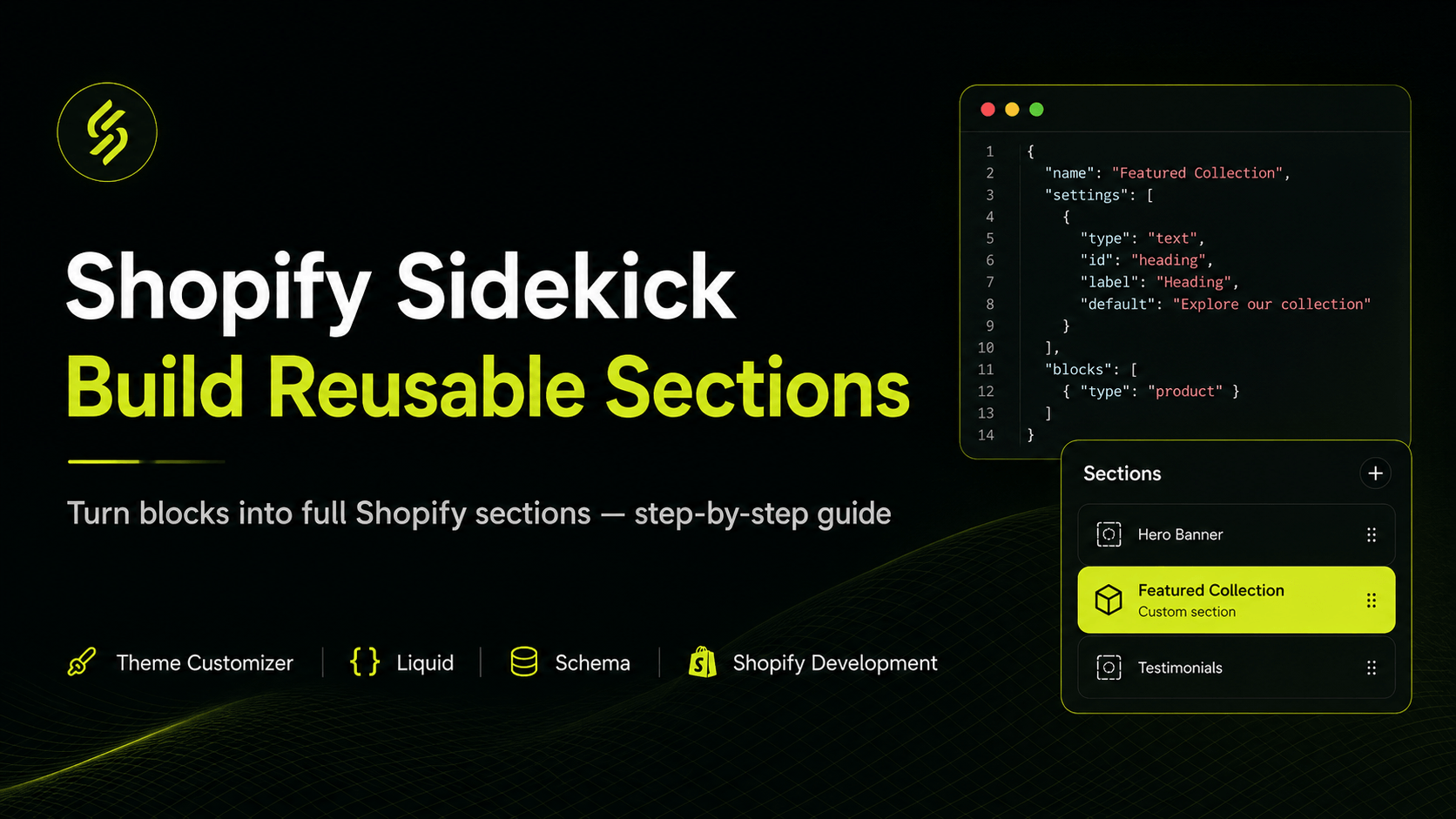

If you work in the Shopify ecosystem, especially with Liquid, theme customization, and Shopify section development, Shopify Sidekick can be a serious productivity booster.
If you work in the Shopify ecosystem, especially with Liquid, theme customization, and Shopify section development, Shopify Sidekick can be a serious productivity booster.
Shopify Sidekick is not just another AI tool. It is an AI-powered assistant built directly into Shopify that helps developers speed up theme customization, Liquid code generation, schema setup, and repetitive development tasks.
In this article, we will walk through how to convert a Shopify Sidekick-generated block into a fully reusable Shopify section. You will also learn practical cleanup tips, schema adjustments, and best practices to make the section production-ready.
What Is Shopify Sidekick?
Shopify Sidekick is Shopify’s AI-powered assistant designed to help merchants, designers, and developers work faster inside the Shopify platform.
For Shopify theme development, Sidekick can help generate:
- Liquid components
- Schema settings
- Customizable blocks
- Layout structures
- Theme editor options
Think of it like ChatGPT, but more Shopify-focused and integrated directly into the Shopify workflow.
Key Benefits of Shopify Sidekick
With Shopify Sidekick, you can:
- Generate Liquid boilerplate code faster
- Create schema and settings more easily
- Prototype new sections quickly
- Reduce repetitive coding tasks
- Work directly inside the Shopify theme customizer
It helps speed up development and reduces the amount of repetitive work developers usually do manually.
Why Convert Sidekick Blocks into Shopify Sections?
By default, Sidekick may generate code as a block. Blocks are useful for modular design, but sometimes developers need a complete standalone section that can be reused across the theme.
A reusable Shopify section is helpful because it can be:
- Added to different pages
- Customized from the theme editor
- Managed independently
- Reused in future templates
- Easily edited by clients or store owners
That is why converting a Sidekick-generated block into a reusable Shopify section is a useful workflow for Shopify developers.
Step-by-Step Guide
Step 1: Open the Shopify Theme Customizer
From your Shopify admin dashboard, go to:
Once the theme customizer opens, look for the Sidekick icon. This is where you can start generating Shopify components using AI.
Step 2: Prompt Sidekick
Now give Sidekick a clear prompt based on what you want to create.
Example:
The more specific your prompt is, the better the generated result will be.
Usually, Sidekick generates:
- Liquid markup
- Schema settings
- Editable content fields
- Basic responsive structure
Step 3: Refine the Output
Do not treat the first output as final. Use follow-up prompts to improve the generated component.
You can ask Sidekick to:
- Add responsive layouts
- Add image position settings
- Add background color options
- Add customizable button styles
- Make all content editable
- Improve spacing and alignment
This step helps create a cleaner and more production-ready section before exporting the code.
Step 4: Export the Generated Code
Once you are happy with the result:
- Click the three-dot menu
- Select Edit Code
- Open the generated
.liquidfile - Copy the full code
This copied code will be used to create the reusable Shopify section.
Step 5: Create a New Shopify Section
Now go to your Shopify theme code editor.
Open the sections folder and create a new .liquid file.
Example:
Then paste the generated code into the new file.
Try to use meaningful names so the section is easier to maintain later.
Good examples:
Step 6: Clean Up the Schema
Since the original code was generated as a block, you may need to clean up the schema before using it as a section.
Remove unnecessary "tag": true
If the schema contains:
You can usually remove it for standalone sections.
Replace block.settings with section.settings
Sidekick-generated blocks often use:
For a Shopify section, change it to:
This is one of the most important cleanup steps.
Adjust the Schema Structure
Make sure the schema settings are properly structured.
Example:
This structure works well inside Shopify section schemas.
Final Result
After cleaning up the code and schema, the Sidekick-generated block becomes a fully reusable Shopify section.
You can now:
- Add it from the theme customizer
- Reuse it across different templates
- Customize content dynamically
- Allow clients to edit content easily
Pro Tips for Shopify Developers
Use Sidekick for Prototyping
Sidekick is excellent for quickly generating a starting point. However, developers should still manually optimize the final code.
Before using the section in production:
- Remove unnecessary wrappers
- Improve code structure
- Optimize performance
- Check accessibility
- Improve responsiveness
Add Default Values
Default schema values improve the editing experience.
Example:
This gives store owners a better preview immediately after adding the section.
Test Responsiveness
AI-generated layouts are not always perfectly responsive.
Always test the section on:
- Desktop
- Tablet
- Mobile
Check spacing, typography, alignment, and overflow carefully.
Do Not Ignore Accessibility
A good Shopify section should include:
- Proper image alt text
- Meaningful button labels
- Correct heading hierarchy
- Keyboard accessibility
These improvements help both SEO and user experience.
Will Shopify Sidekick Replace Developers?
No.
Shopify Sidekick is designed to assist developers, not replace them.
It can help with:
- Boilerplate generation
- Initial layouts
- Schema creation
- Repetitive coding tasks
But production-ready Shopify development still requires human judgment, clean architecture, accessibility improvements, performance optimization, and scalable code structure.
Conclusion
Shopify Sidekick is becoming a valuable productivity tool for Shopify developers.
The best workflow is:
By following this process, developers can build reusable Shopify sections faster while still maintaining clean, scalable, and production-ready code.